InvoiceNow GST
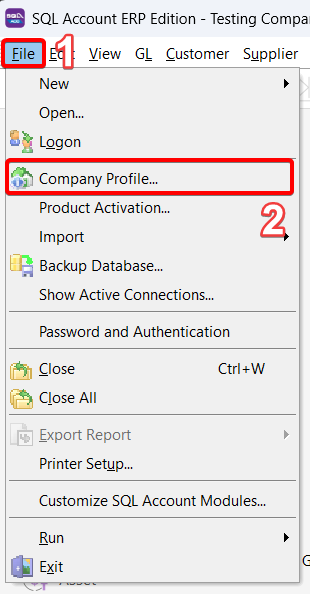
- Go to File
- Click on Company Profile
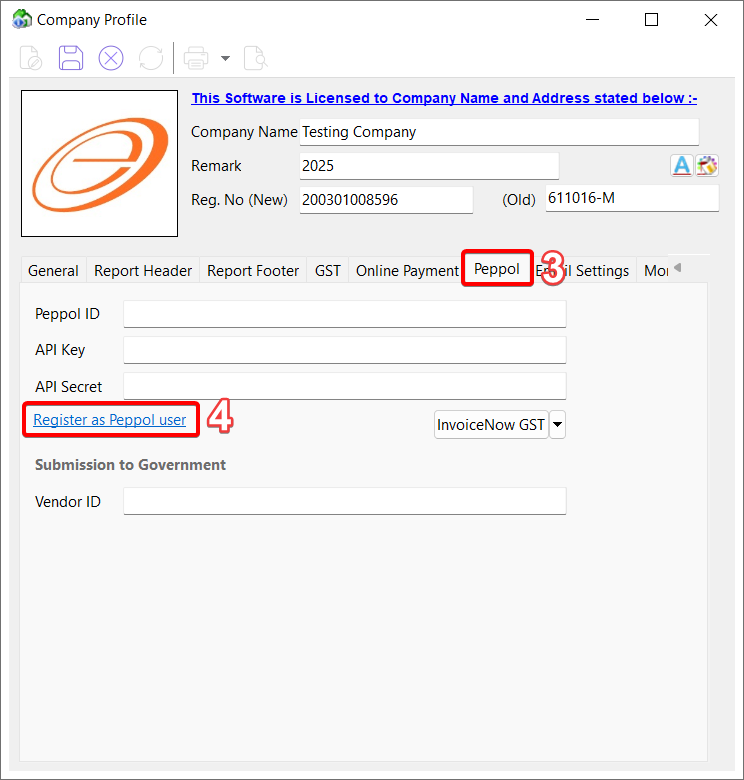
- Click on Peppol Tab
Click on Register As Peppol User to register your own company Peppol ID
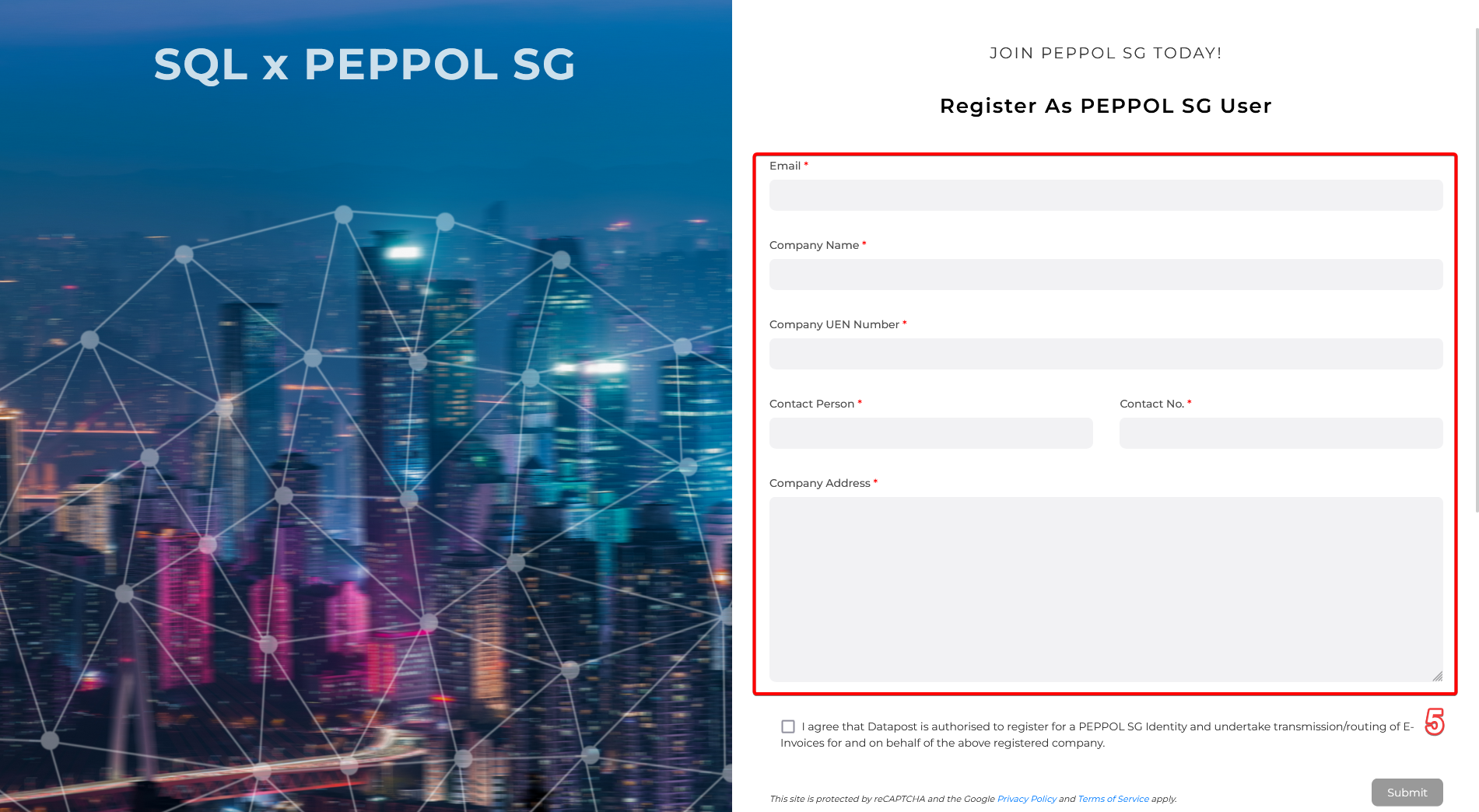
It will be directed to our website to complete the required details
Upon successful registration, user will receive notification email from Datapost within 1 to 3 working days.
Once registered , your company Peppol ID will be listed in Singapore Peppol Directory
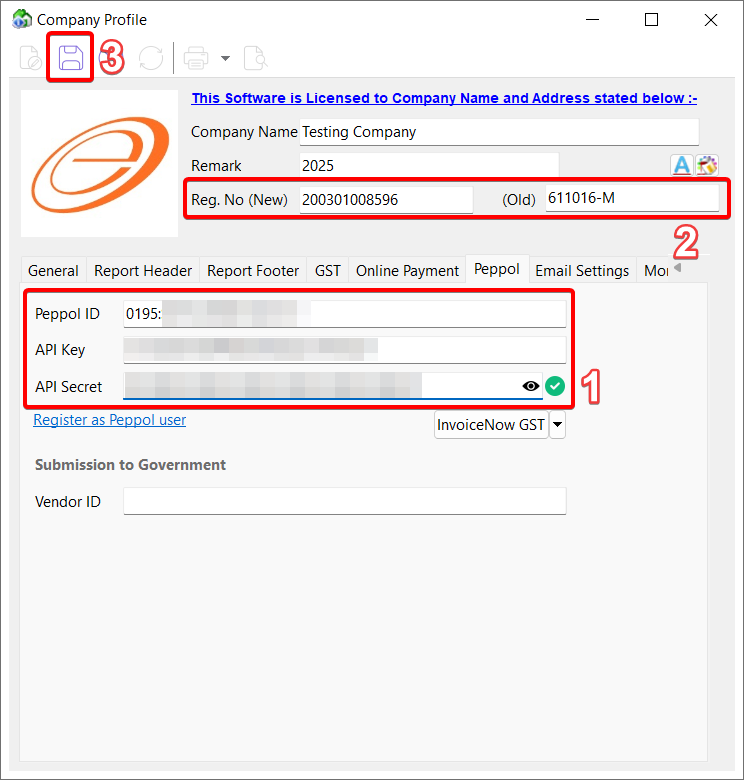
Once received, key your Peppol ID , API Key and API Secret in Peppol Tab
(API key and API Secret can be found in your Peppol online portal)
Fill in your company UEN Number in Reg.No (New)
Save
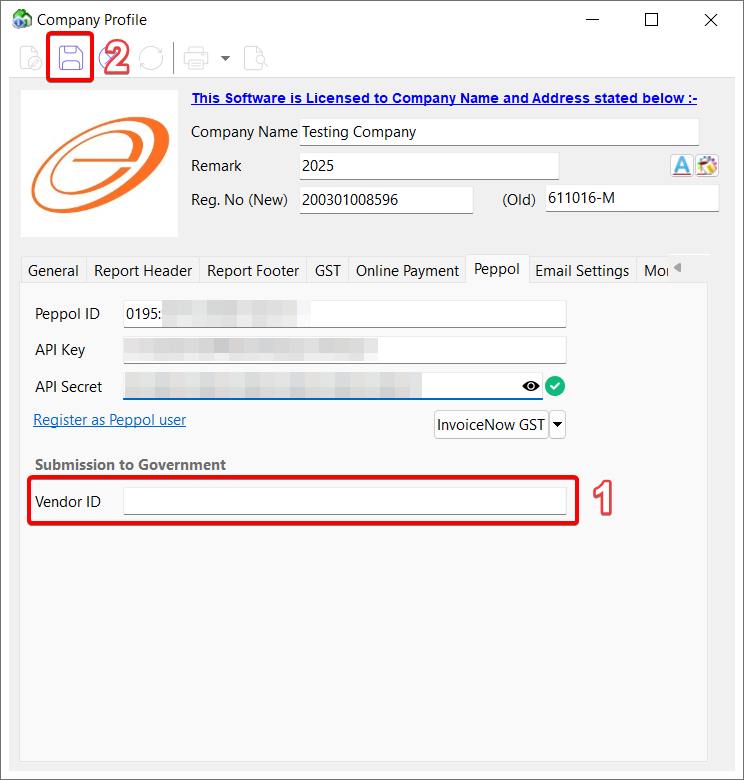
Fill in your Vendor ID registered on Vendors@Gov
Save
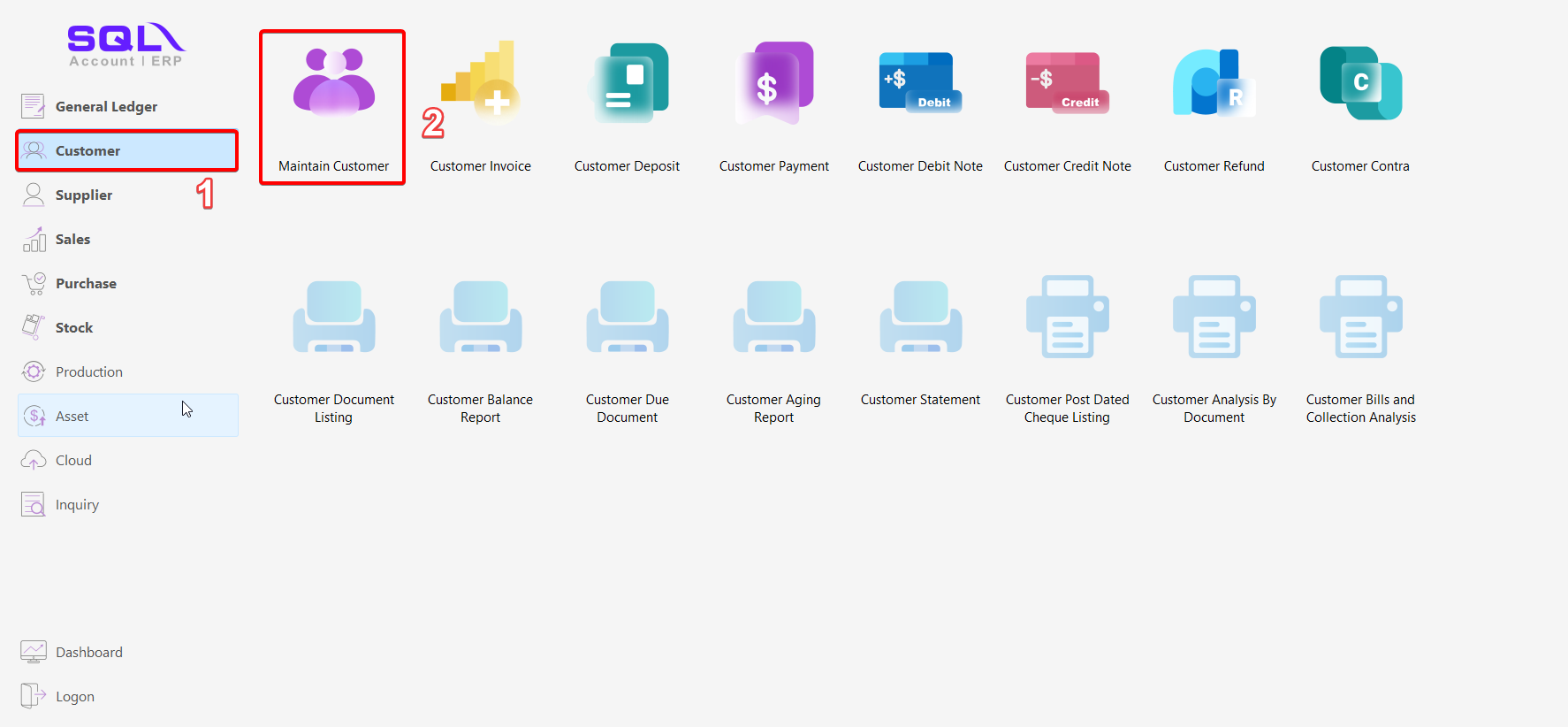
- Go to Customer
Click on Maintain Customer > Double Click your customer
3.1 Peppol B2C (Business To Customer)
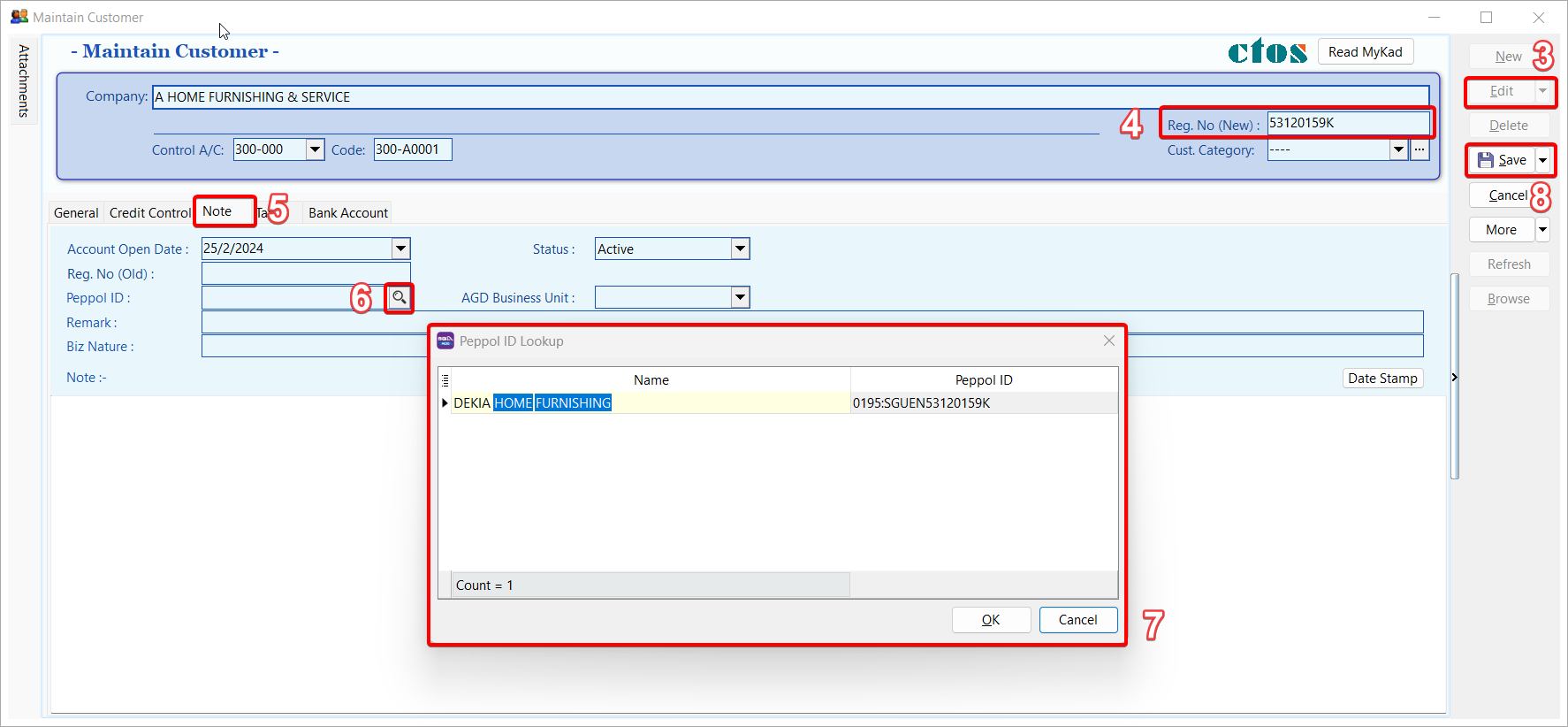
Click on Edit
Fill in customer UEN number in Reg. No (New)
Select Note Tab
Click on the ‘magnifier’ button to search customer peppol ID
Select the Customer Company Name to get Peppol ID
(When you input your Peppol details, the system will automatically update your UEN Number. Please double check to ensure its accuracy)
Click Save
3.2 Peppol B2G (Business To Government)
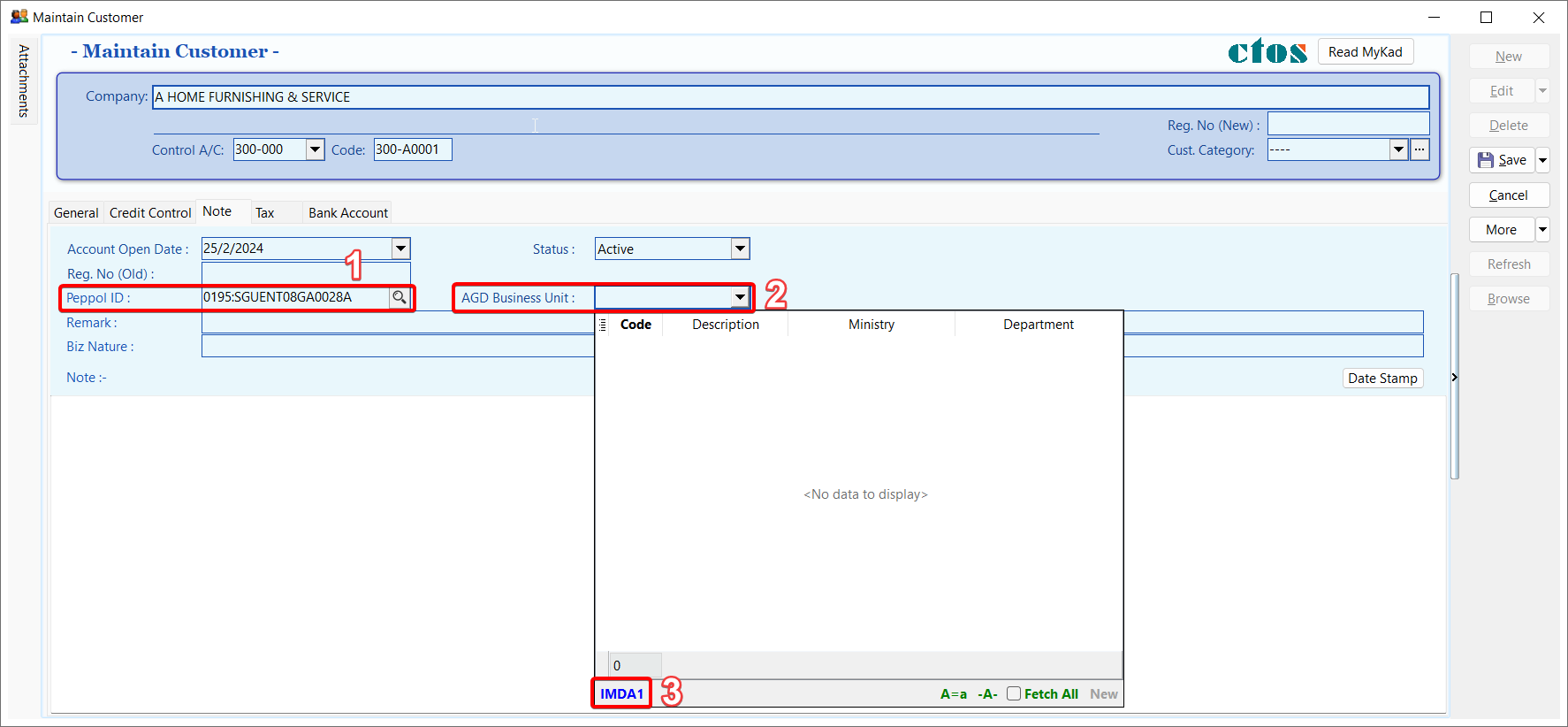
Peppol ID must be: 0195:SGUENT08GA0028A
Must fill in your customer Business Unit
Please enquire with your client agency to get accurate Business Unit to indicate
If the Business Unit given from your client agency is not listed, please type it manually and click on the blue text
For Example : IMDA1 not listed , click the IMDA1
4.1 Send Document by B2C (Business To Customer)
Once the sales invoice / Sales Credit Note is prepared, Click Send button to send your document to Peppol.
Make sure the Peppol ID and UEN Number had filled in correctly in Maintain Customer
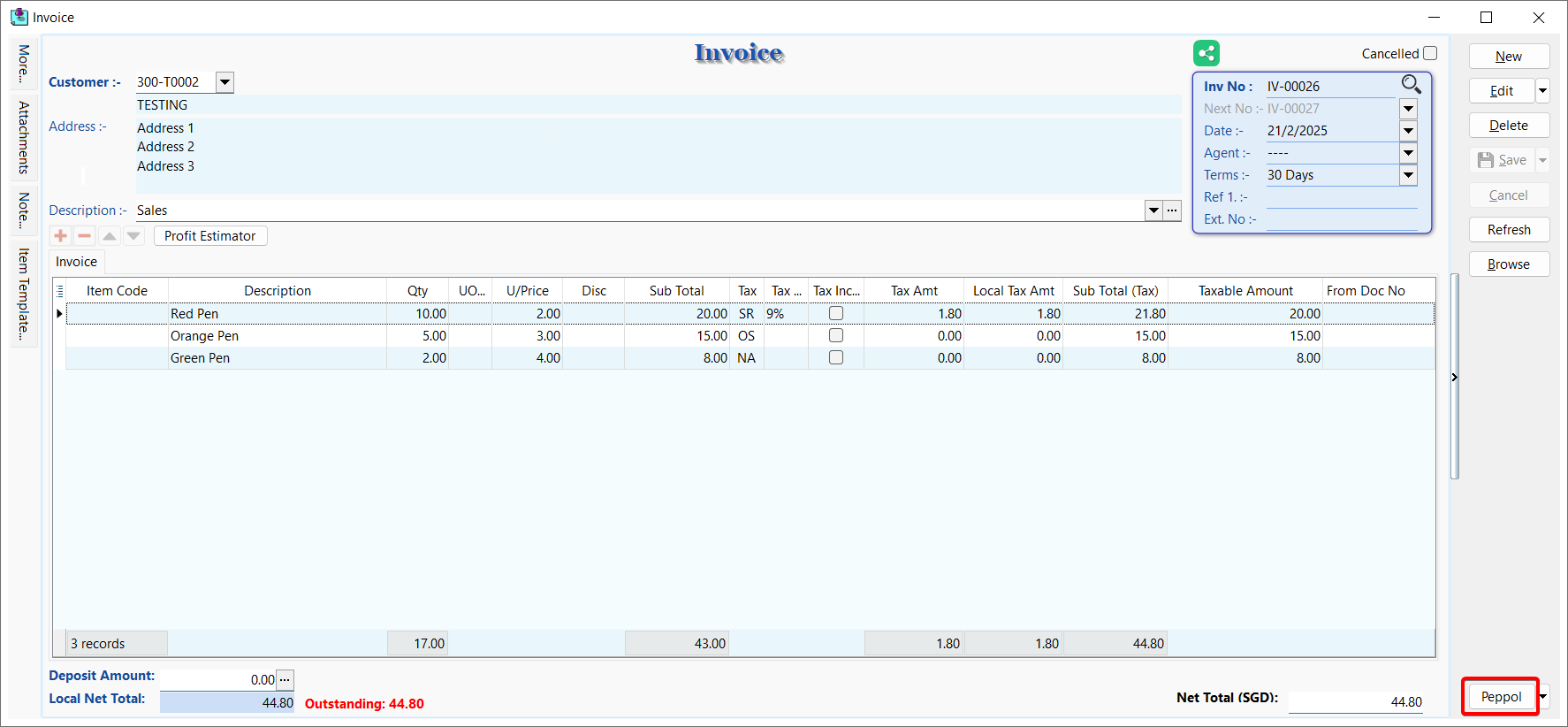
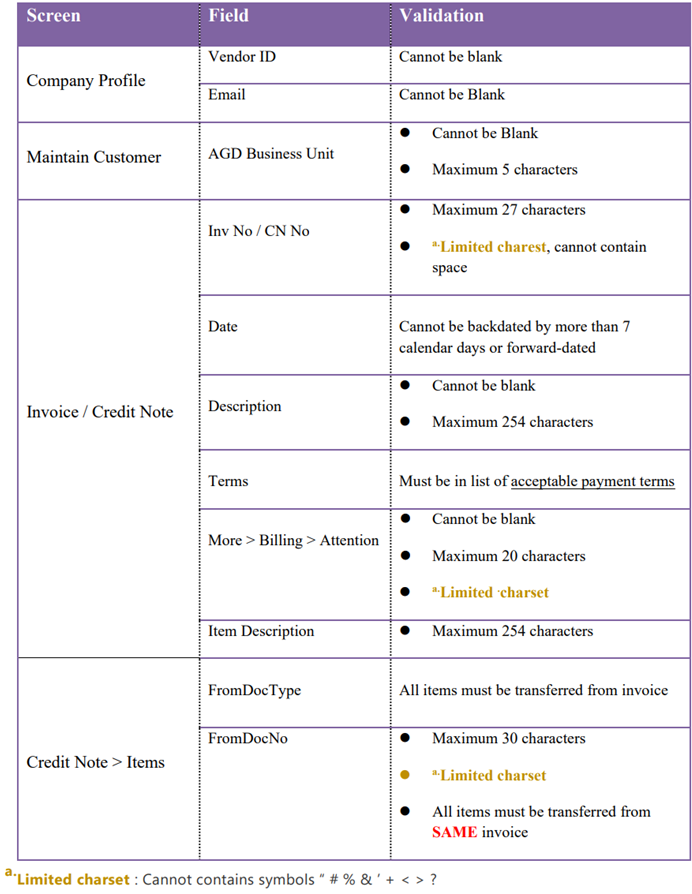
4.2 Send Document by B2G (Business To Government)
B2G follows the same steps as B2C, but B2G’s Peppol ID must be 0195:SGUENT08GA0028A (refer Topic 11.3.2). Additionally, there are additional validations for B2G transactions.
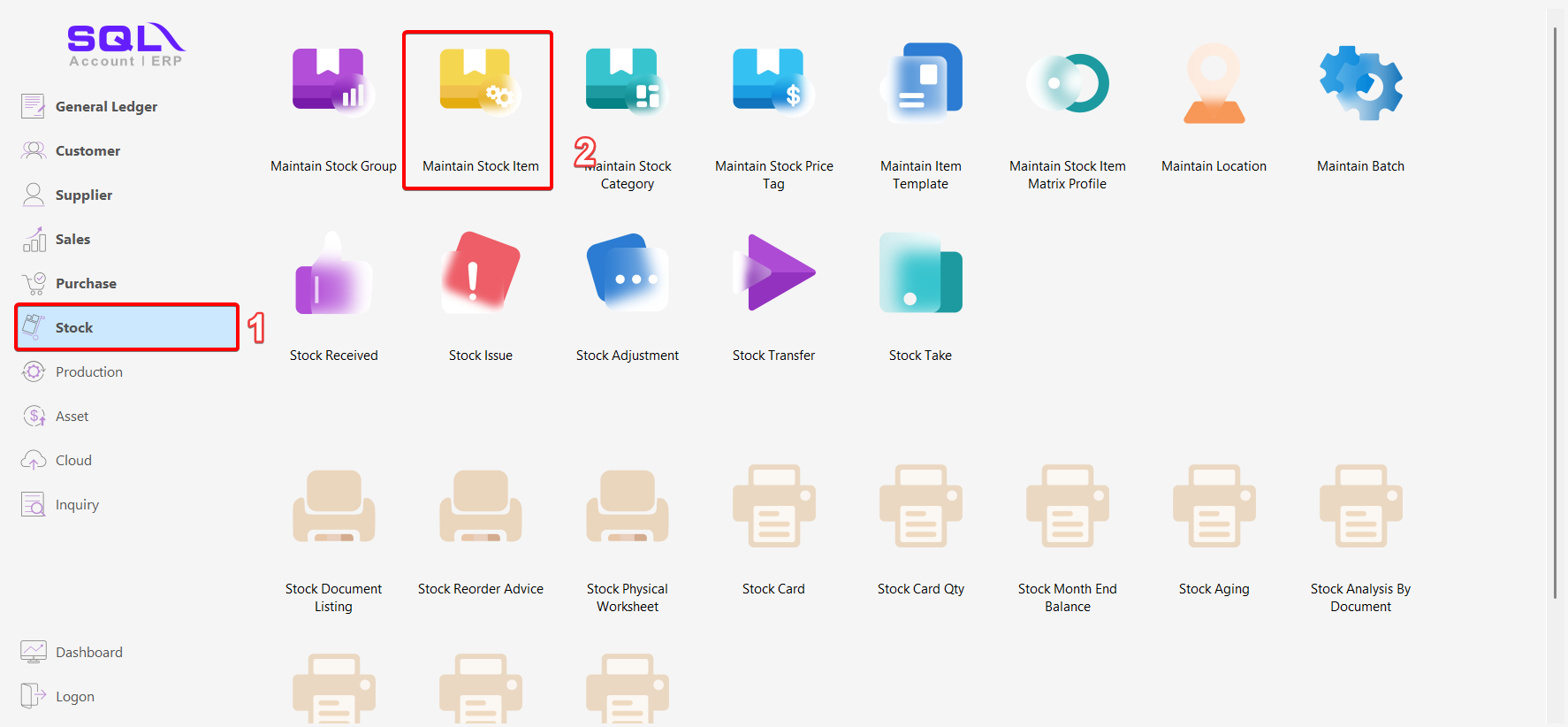
Click Stock
Click on Maintain Stock Item
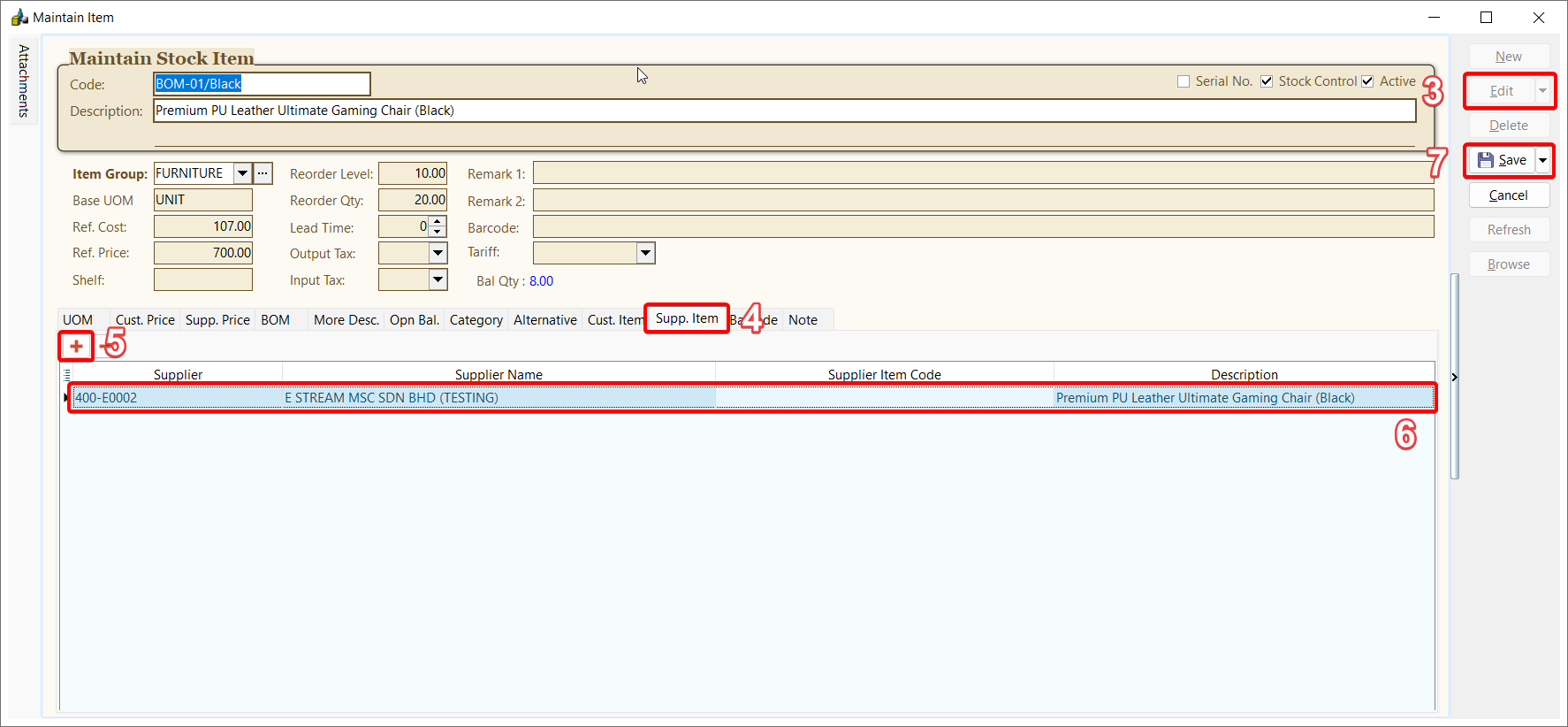
Click Edit
Click on Supp. Item tab
Click ‘+’ button
Fill in your supplier code and description
Save
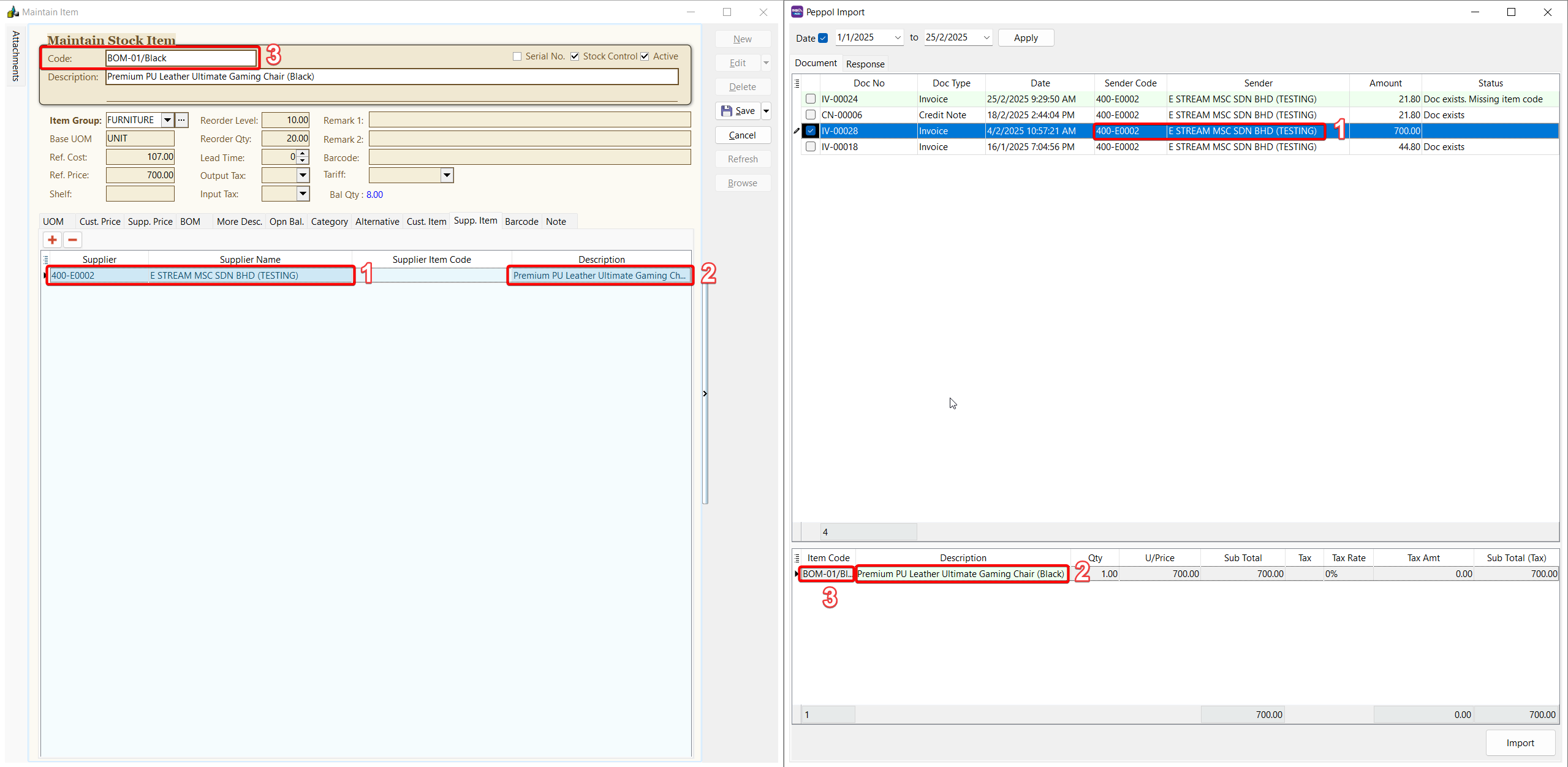
After done settings, when you import a document from Peppol, the items will be automatically mapped item code and displayed as shown in the picture below, as an example:
- Supplier Code and Supplier Name matched
- Item Description matched
- Item Code set automatically
- Purchase
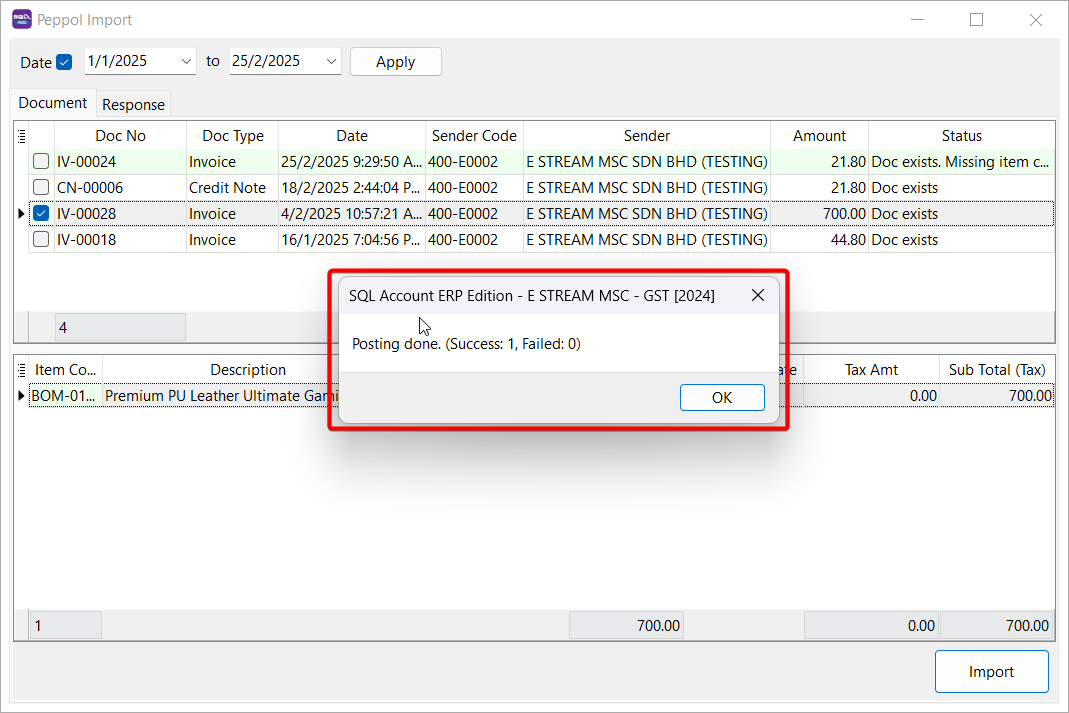
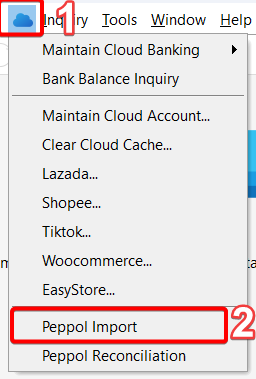
Peppol Import
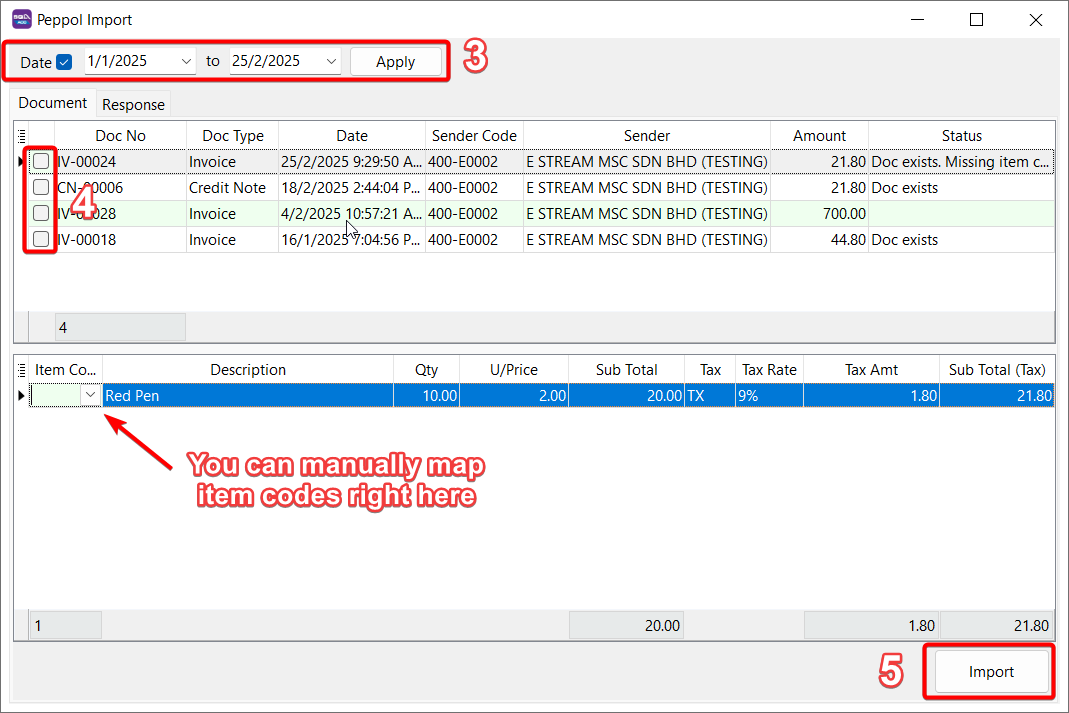
Select date range and click Apply
Tick the checkboxes to select documents to import
Click Import button
- A pop up message will show for Posting Done