InvoiceNow GST Operation
To activate InvoiceNow GST submission for GST-registered Businesses, navigate to File > Company Profile > Peppol and perform the actions below:
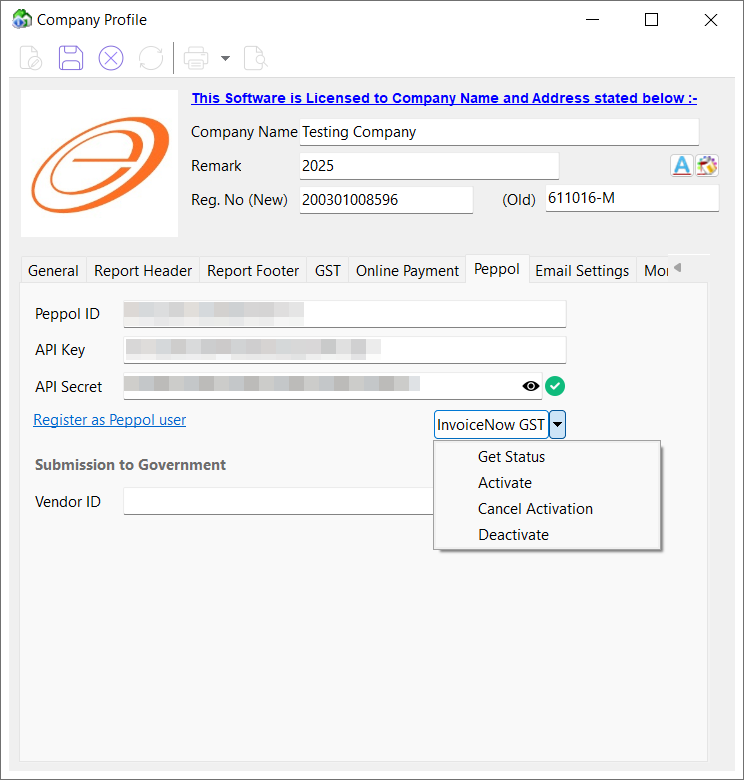
To initiate InvoiceNow GST activation for specified participants and organizations. Activation requires signing with Corppass.
- Click on InvoiceNow GST > Activate
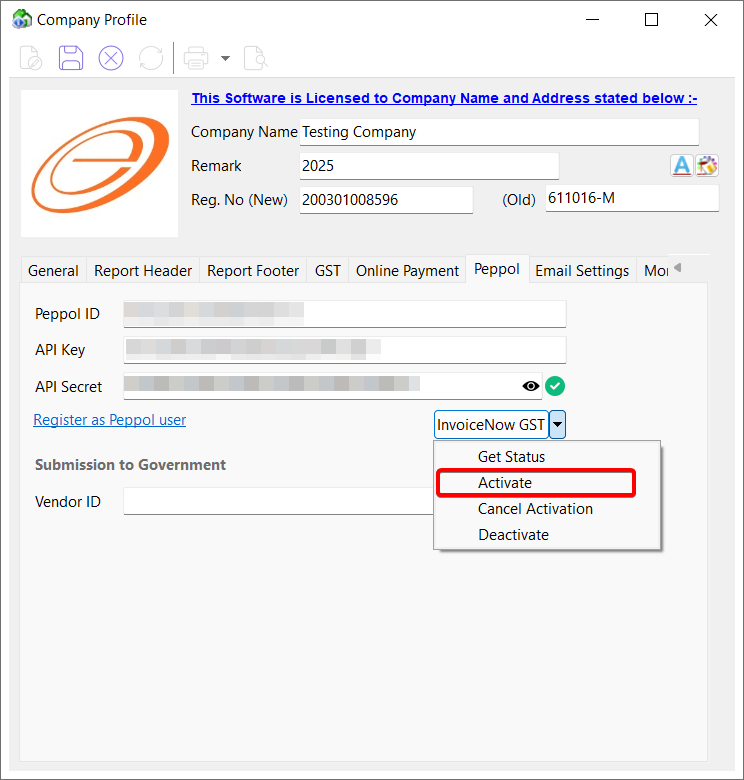
To check the InvoiceNow GST activation status for a specific participant and organization.
- Click on InvoiceNow GST > Get status
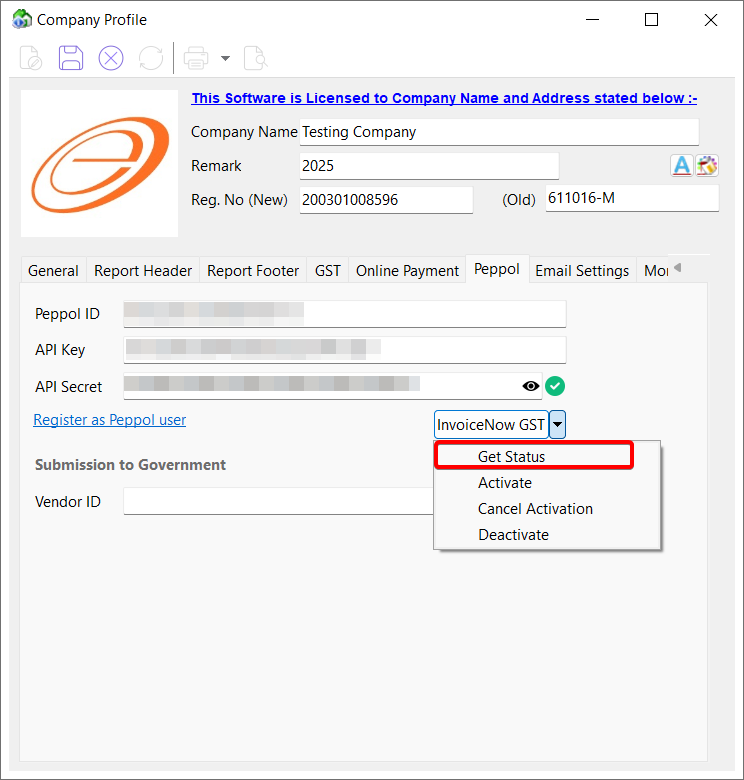
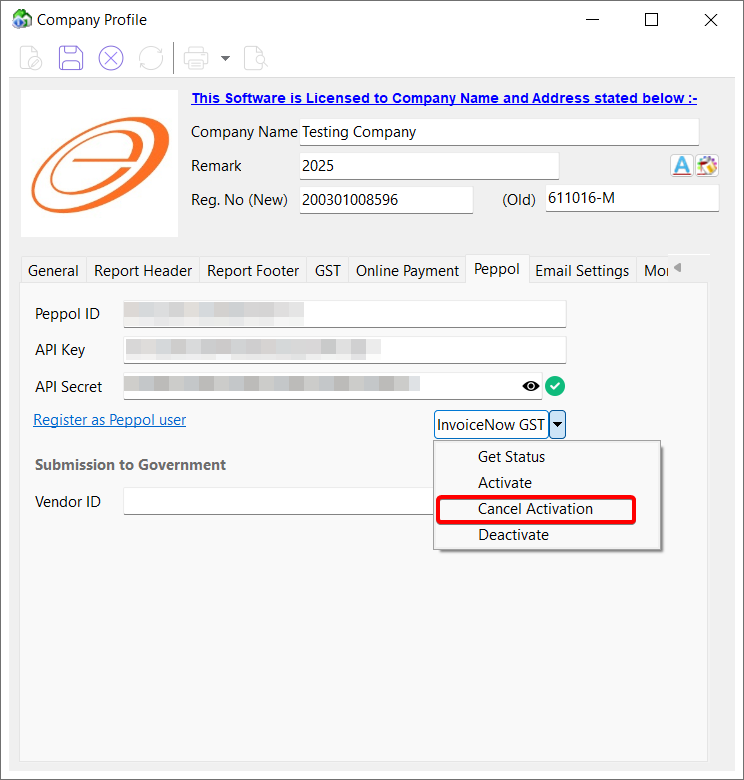
To cancel an initiated InvoiceNow GST activation, a KYC pending InvoiceNow GST activation or a InvoiceNow GST deactivation.
- Click on InvoiceNow GST > Cancel Activation
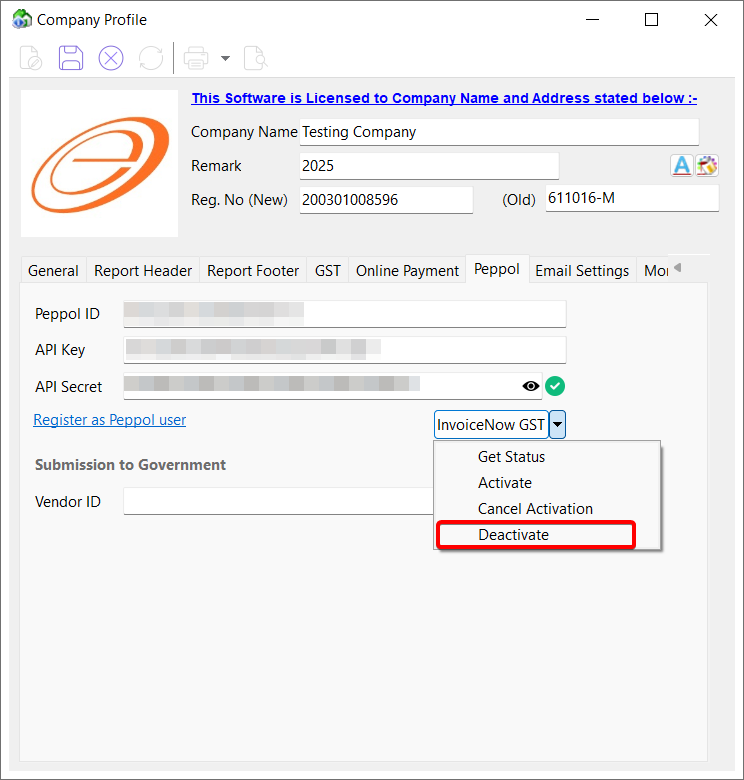
To deactivate an existing InvoiceNow GST activation. Deactivation requires signing with Corppass.
- Click on InvoiceNow GST > Deactivate
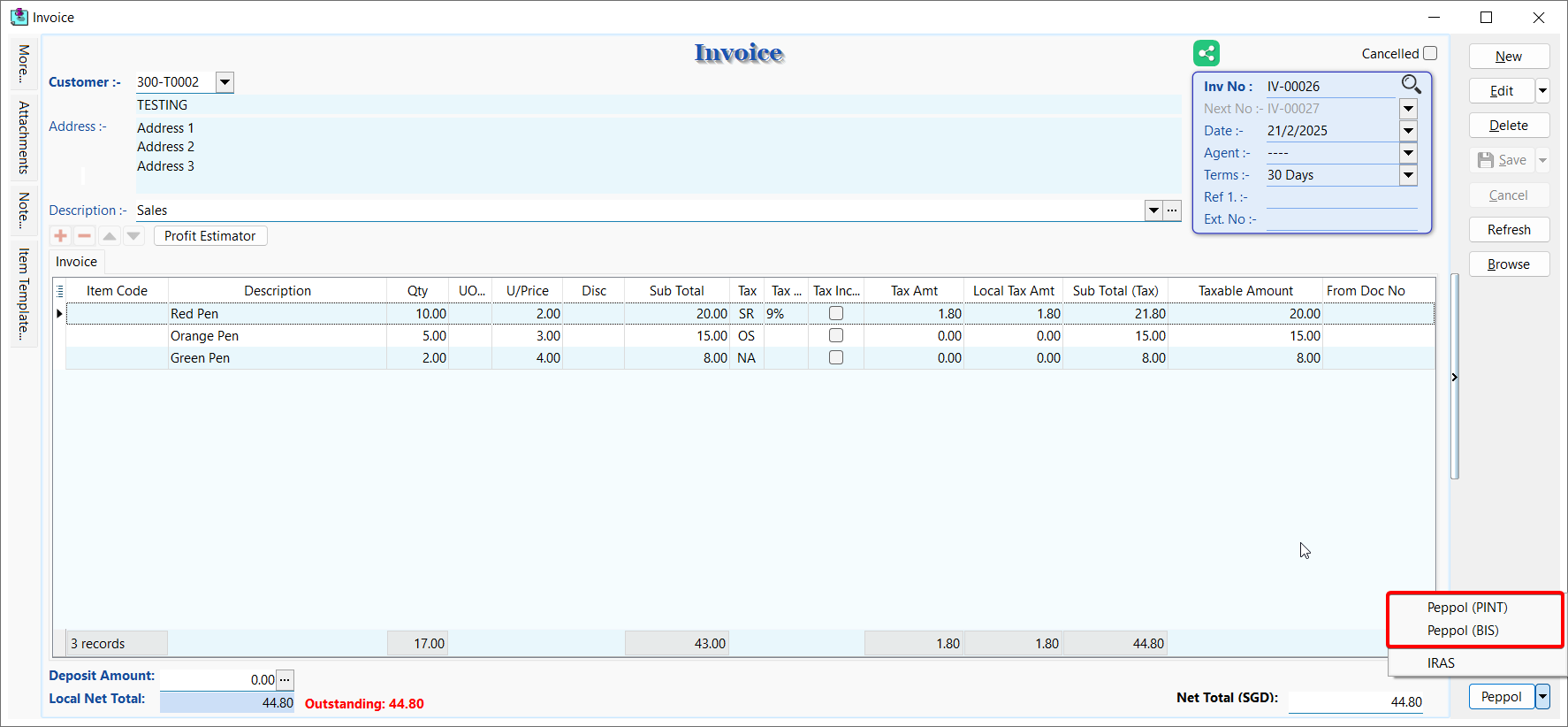
This type will submits documents to the Peppol network and automatically forwards them to IRAS. You may use this type when the customer is on Peppol.
- Supported format: PINT (Default), BIS
- Supported document types: Sales Invoice, Credit Notes
Click on Peppol > Peppol (PINT) or Peppol (BIS)
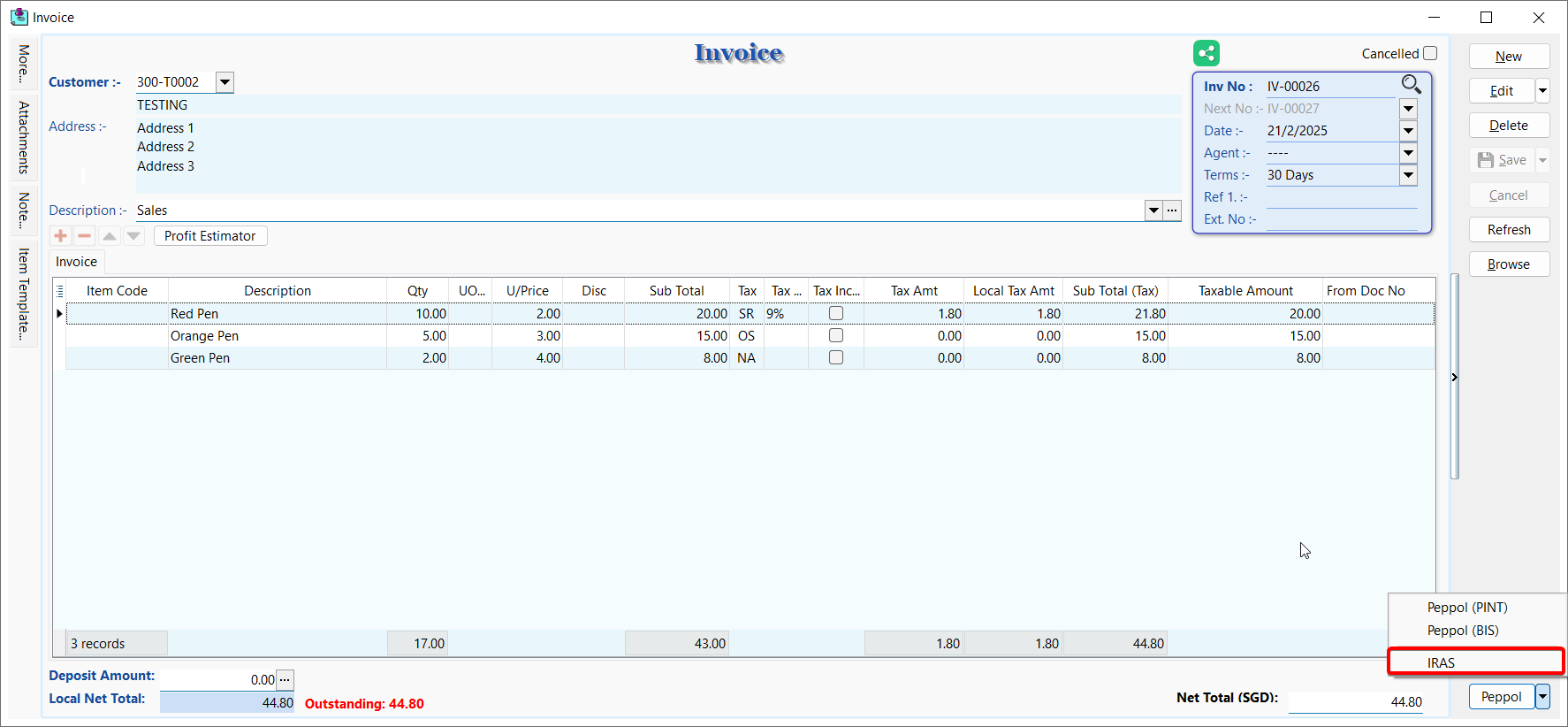
This type will submits documents directly to IRAS.
NOTE
Supported format: PINT
Supported document types: Sales Invoice, Credit Notes
- Click on Peppol > IRAS
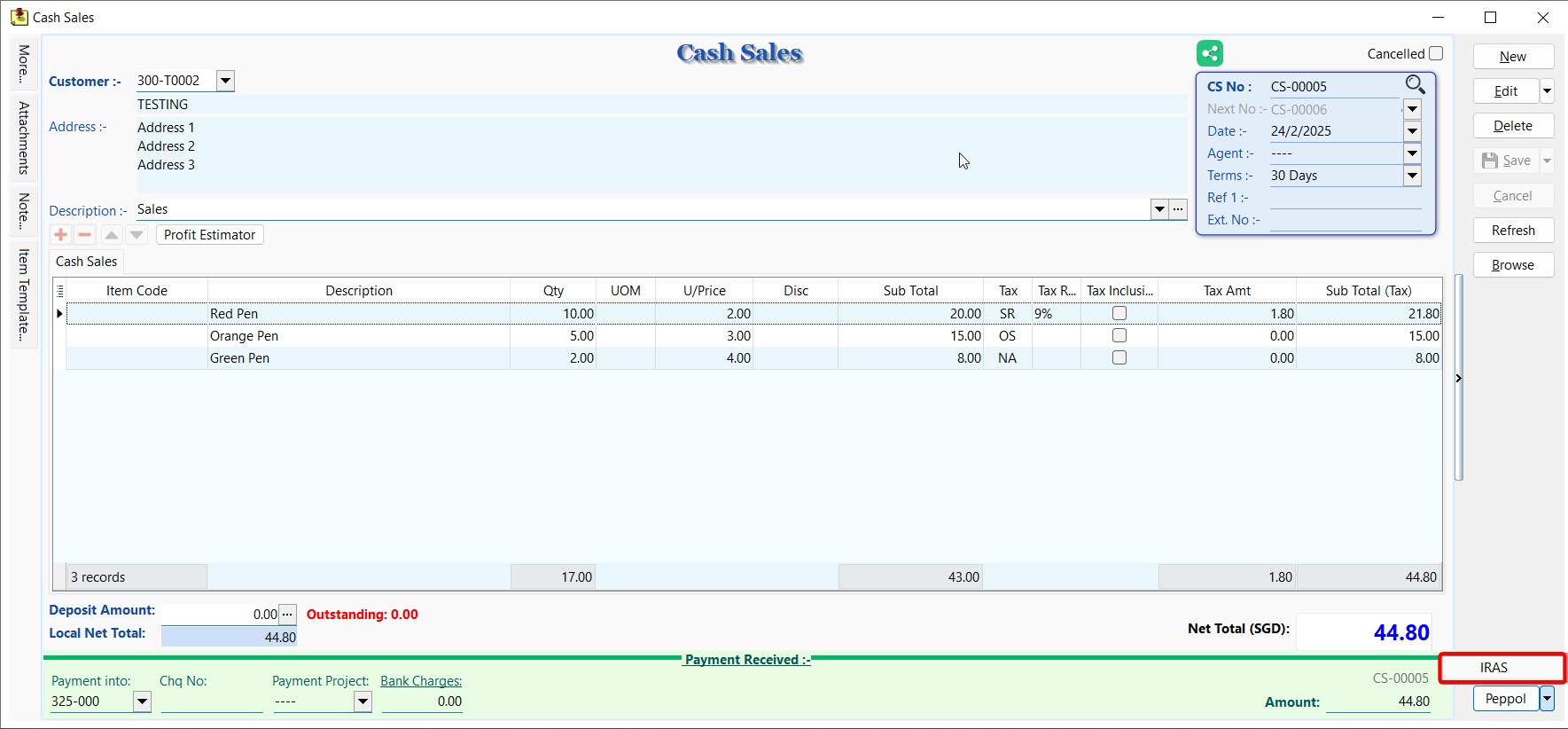
This type will groups items by tax code and submits documents to IRAS. You may use this type for cash register sales or sales made via point-of-sale systems (POS) or simplified tax invoices issued (STI).
NOTE
Supported format: PINT
Supported document types: Cash Sales
- Click on Peppol > IRAS
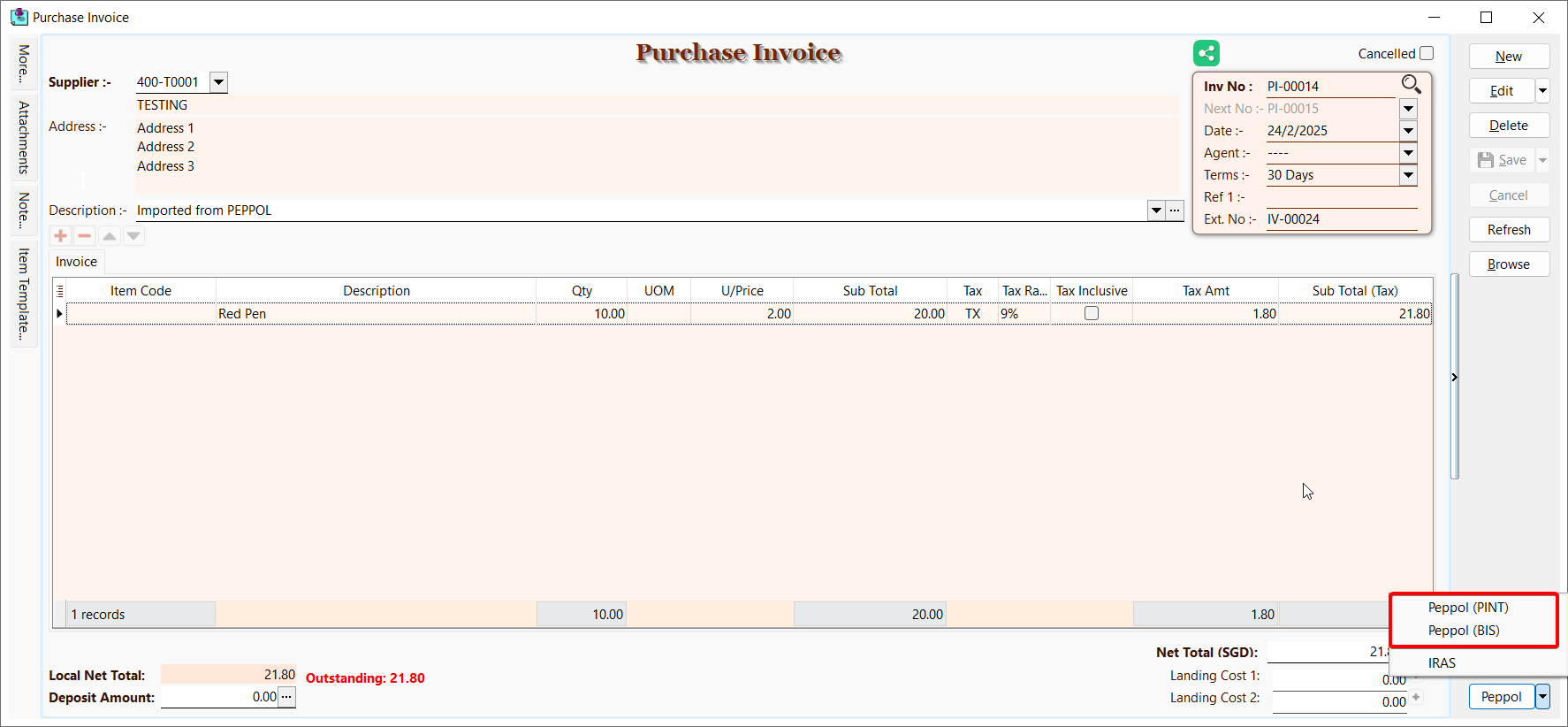
This type will submits received documents via the Peppol network and forwards them to IRAS. You may use this type for documents imported using Peppol.
NOTE
Supported format: PINT (Default), BIS
Supported document types: Purchase Invoice, Purchase Returned
Click on Peppol > Peppol (PINT) or Peppol (BIS)
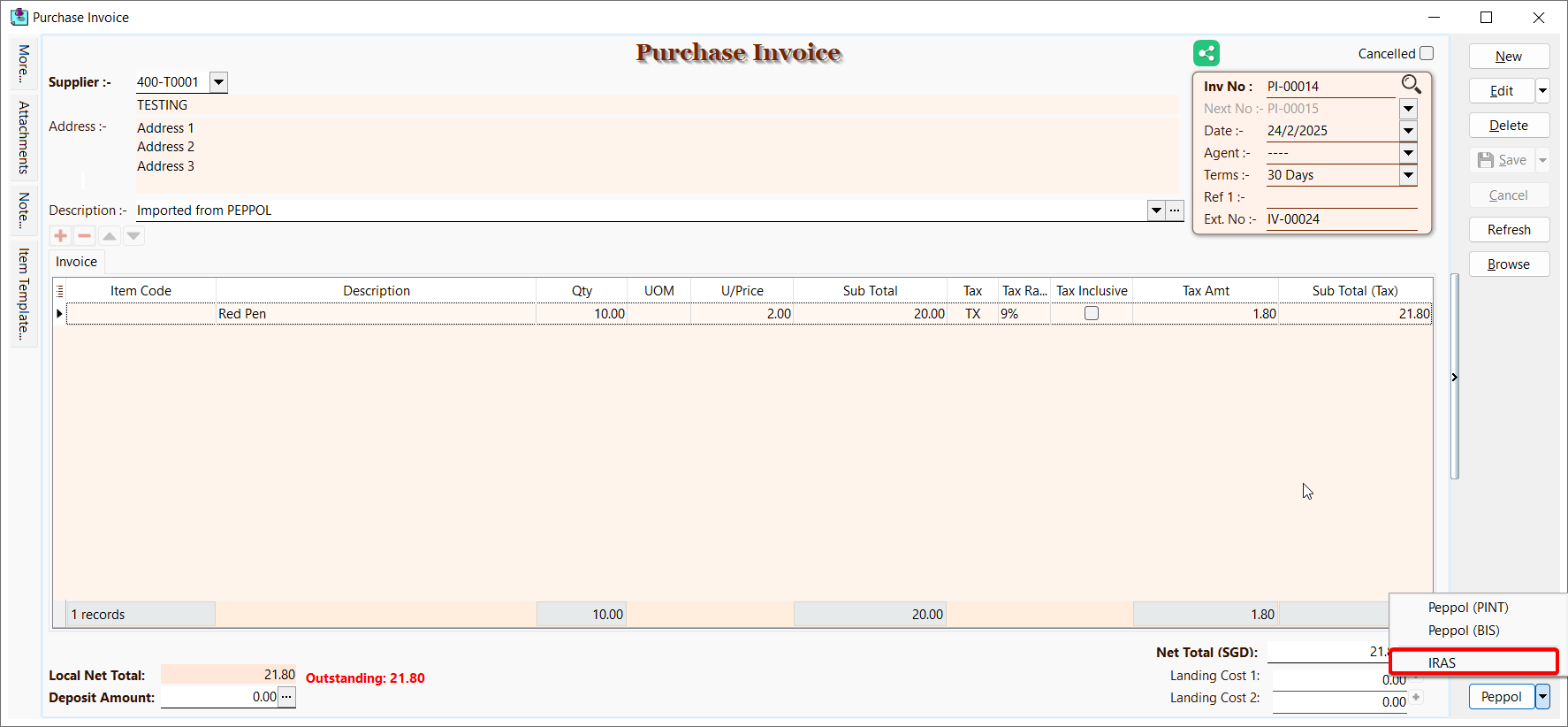
This type will submits received documents directly to IRAS.
NOTE
Supported format: PINT
Supported document types: Purchase Invoice, Purchase Returned
Click on Peppol > IRAS
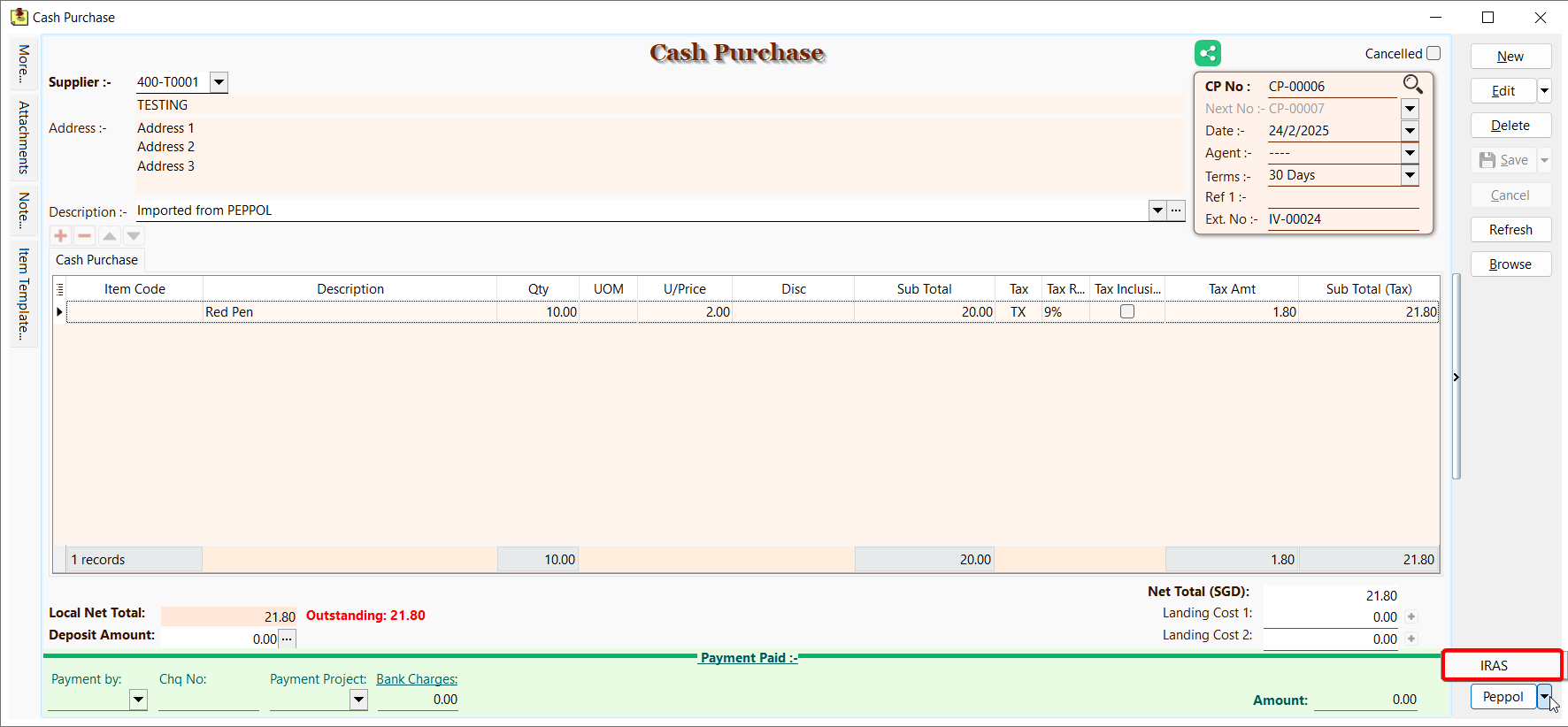
This type will groups items by tax code and submits documents to IRAS. You may use this type for petty cash purchases (PCP).
NOTE
Supported format: PINT
Supported document types: Cash Purchase
- Click on Peppol > IRAS
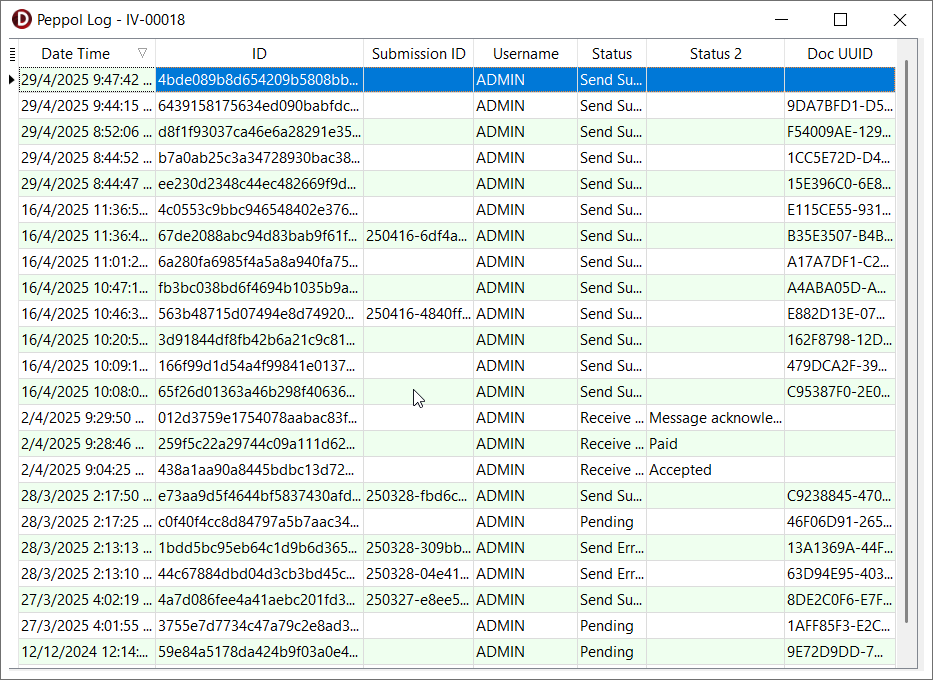
To check the Peppol log of a document.
NOTE
The Remark column stores the IRAS Acknowledgement ID
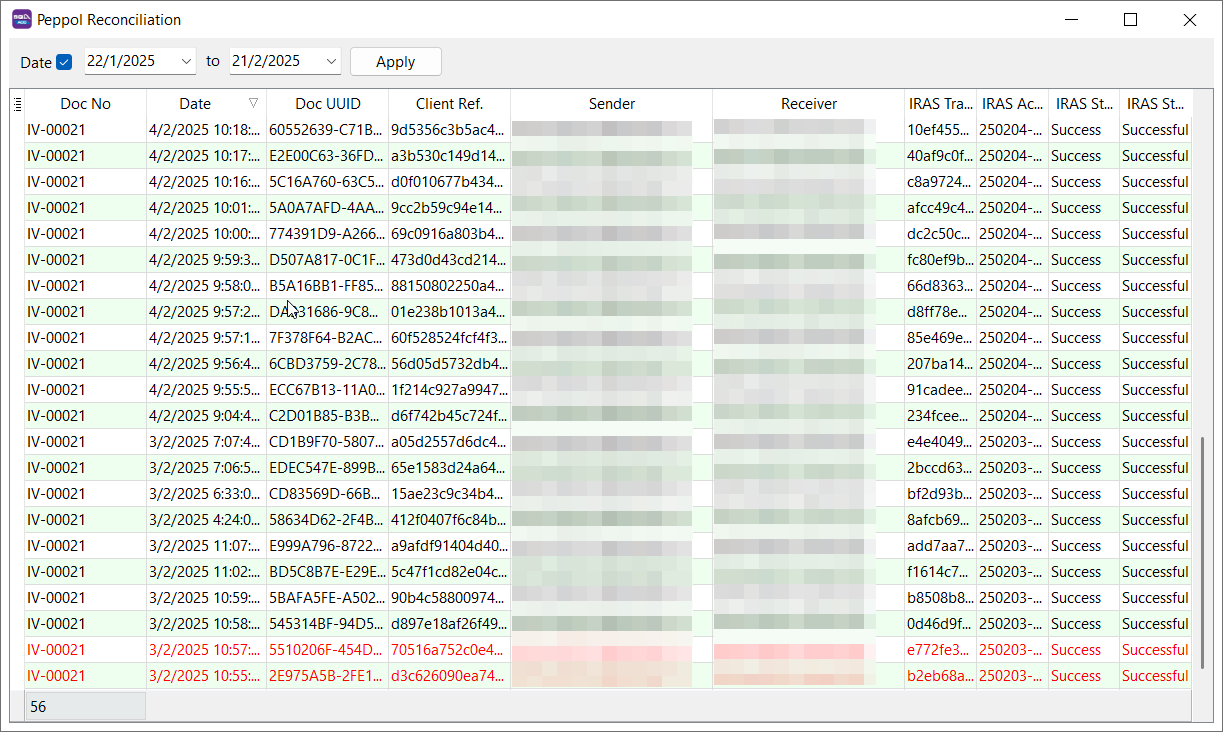
To compare document submissions in SQL Account and the Peppol network.
NOTE
The record highlighted in red color indicate missing document submissions in SQL Account